
The Setup
NOTE: If you already have a shortcut setup on your desktop for a previous remote connection we recommend you delete the unused shortcut by right clicking on it and select delete to remove any future confusion.
NOTE: Your company may require you to connect to a VPN before you're able to connect to your computer via this process.
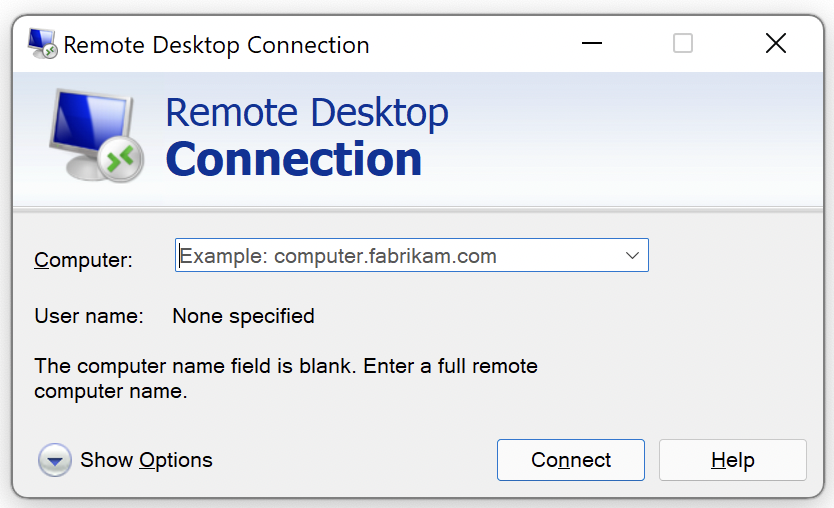
- Open your start menu and search for and open “Remote Desktop Connection”
- Click on the “Show Options” button in the bottom left of the window.
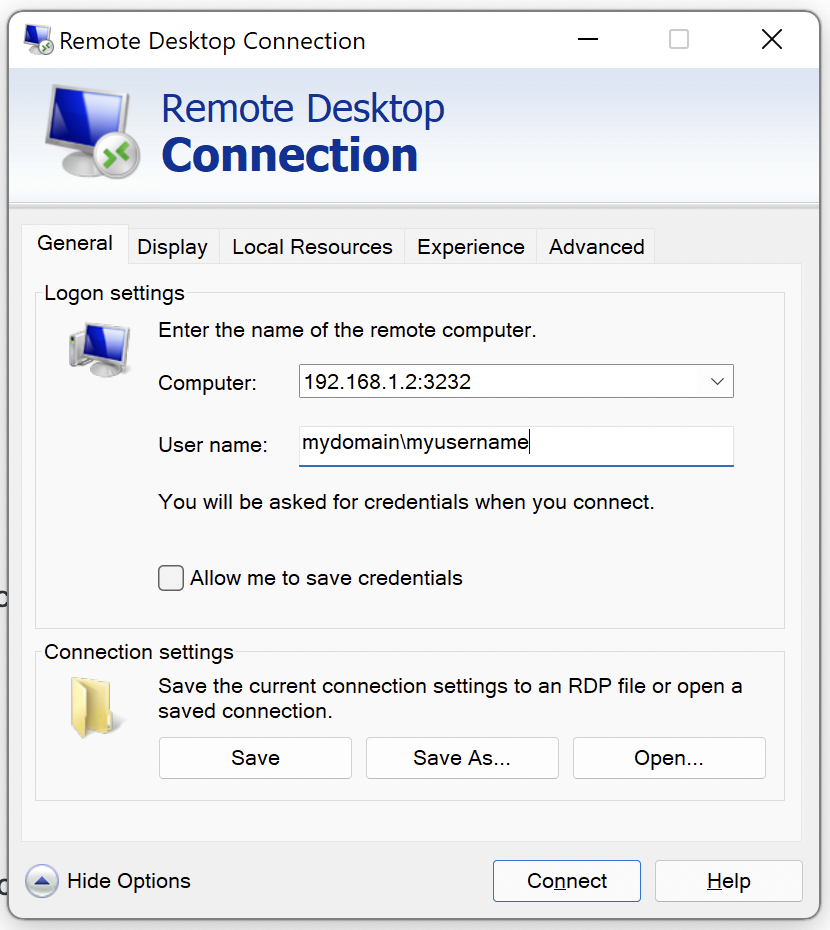
- In the “Computer” field you will enter your computer’s IP address with :3232 at the end, EG 192.168.1.30:3232 (your technician will provide your IP to you if you dont know what it is)
- The “User name” field you will enter “domain\username”(please ask your technician if your not sure what your username is)
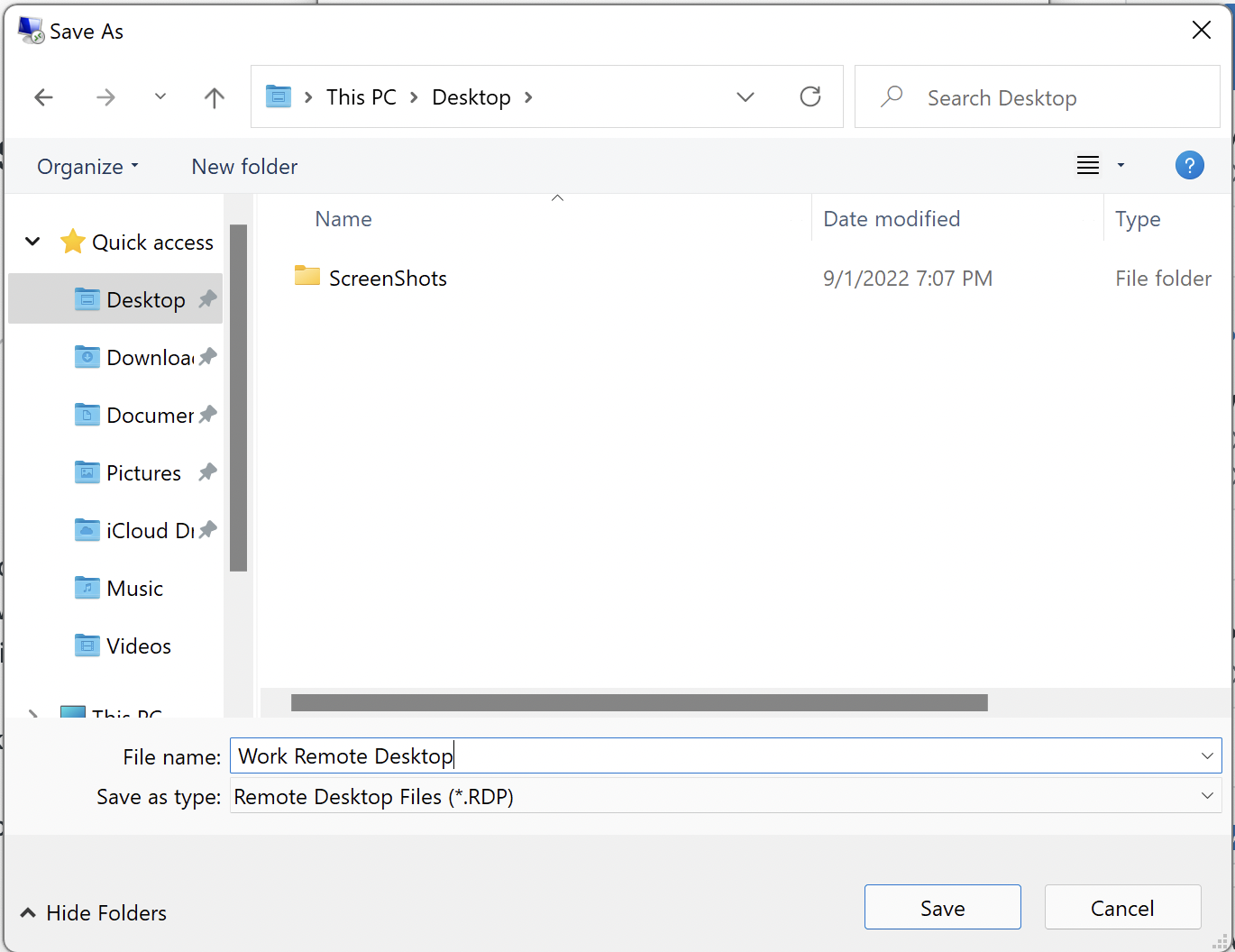
- Click on the “Save As” button, navigate to your desktop, type in ‘Work Remote Desktop’ then click save.
- Close the Remote Desktop Connection dialogues
To Connect
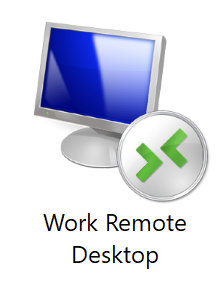
To Connect, find the Blue icon on your desktop labeled ‘Work Remote Desktop’ and double click on it.
If you see a security popup with a yellow banner (below) click the checkbox ‘Don’t ask me again…” then click on connect

Enter the same password that you use to log into your computer at the office.
You will be logged into your work computer.
To Disconnect
Hover your mouse at the top of your screen until you see a blue bar appear. on the right side of the bar, click on the X to disconnect.
